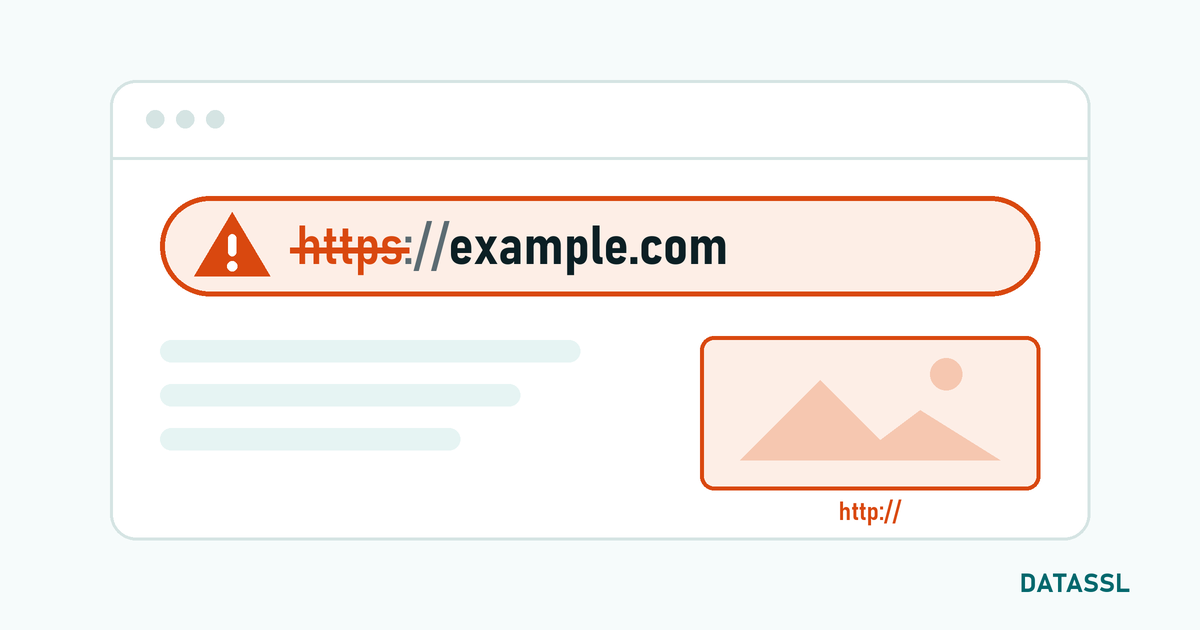
What is NET::ERR_CERT_AUTHORITY_INVALID?
NET::ERR_CERT_AUTHORITY_INVALID is a security error that occurs when the browser cannot recognize the certificate authority (CA) that issued the SSL certificate. In Chrome, this error is displayed with the warning "Your connection is not private" and visitors are prevented from accessing the site.
This error indicates that there is a break in the SSL certificate chain or that the browser does not trust the certificate authority. Browsers show a full-page warning for this error, making it harder for users to continue to the site.
Error Messages: Differences by Browser
The same problem appears with different messages in different browsers:
- Chrome / Edge: NET::ERR_CERT_AUTHORITY_INVALID — "Your connection is not private"
- Firefox: SEC_ERROR_UNKNOWN_ISSUER — “Warning: Potential Security Risk Ahead”
- Safari: "This connection is not private" — Certificate invalid warning
- Opera: NET::ERR_CERT_AUTHORITY_INVALID — Same message as Chrome
Cause 1: Intermediate Certificate is Missing
This is the most common reason. SSL certificate works with a chain of trust:
Root CA → Intermediate Certificate(s) → Site Certificate
If only the site certificate is installed on your server, the browser cannot verify this chain and returns an ERR_CERT_AUTHORITY_INVALID error.
Solution: Installing CA Bundle
Download the CA Bundle (intermediate certificate chain) file from your certificate provider and install it on your server:
# For Nginx
ssl_certificate /etc/ssl/certs/fullchain.pem;  # sitecert + intermediate
ssl_certificate_key /etc/ssl/private/key.pem;

# for Apache
SSLCertificateFile /etc/ssl/certs/site.crt
SSLCertificateChainFile /etc/ssl/certs/ca-bundle.crt
SSLCertificateKeyFile /etc/ssl/private/key.pem
Correct Order
In the fullchain file, the certificates must be in the following order:
- Site certificate (your_domain.crt)
- Intermediate certificate 1 (intermediate1.crt)
- Intermediate certificate 2 — if available (intermediate2.crt)
- Do not add a root certificate — the browser already has it
Reason 2: Self-Signed Certificate
Certificates you create yourself are rejected by browsers because they are not signed by any trusted CA. It should not be used outside the development environment.
Solution
Purchase an SSL certificate from a trusted certificate authority (DigiCert, Sectigo, GlobalSign, etc.) or get a free DV certificate using Let's Encrypt. You can obtain certificates from different certificate authorities through DATASSL.
Cause 3: Old or Expired Root Certificate
If the operating system of the client device (computer or phone) is not up to date, root certificates from new certificate authorities may not be recognized. It is especially seen on older Android devices (Android 7.1 and below) and systems that have not been updated to Windows XP/7.
Solution
- Ask user to update operating system
- Choose a CA that uses a cross-signed certificate
Cause 4: Antivirus or Firewall Interference
Some antivirus software (Avast, Kaspersky, ESET) intercept the SSL connection and insert their own certificates to scan HTTPS traffic. This intervention may cause the ERR_CERT_AUTHORITY_INVALID error.
Solution
- Disable "HTTPS Scanning" or "SSL Filtering" in your antivirus software
- To test whether the problem is caused by antivirus, temporarily disable it and refresh the page
Cause 5: Incorrect System Time
If the computer clock is forward or backward, the validity dates of the certificate do not match and this error may occur.
Solution
# Windows: Automatic time setting
w32tm /resync

# Linux: NTP synchronization
sudo timedatectl set-ntp true
Quick Diagnostic Steps
| Step | Command / Tool | What to Check |
|---|---|---|
| 1 | DATASSL SSL Checker | Is the certificate chain complete? |
| 2 | openssl s_client -connect domain:443 | Is the intermediate certificate returning? |
| 3 | SSL Labs Test | Are there any Chain issues? |
| 4 | Different browser/device | Is the problem universal or device specific? |
| 5 | Turning off antivirus | Is there software intervention? |
Conclusion
The most common cause of the NET::ERR_CERT_AUTHORITY_INVALID error is the lack of an intermediate certificate and is resolved in a few minutes by correctly uploading the CA Bundle file to the server. Self-signed certificate, old devices and antivirus interference are other common causes. You can use the DATASSL SSL Checker tool to quickly diagnose the problem.