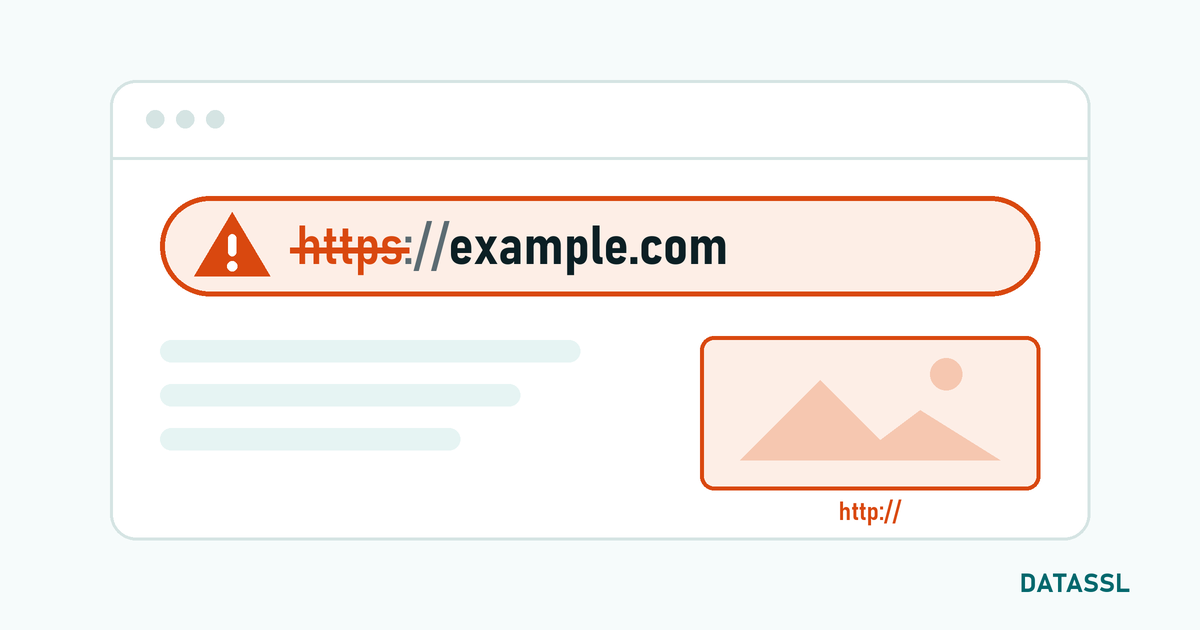
cPanel is one of the most used hosting control panels worldwide. Setting up an SSL certificate to secure your website is very easy and fast on cPanel. In this guide, we explain in detail the steps of creating a CSR in the cPanel panel, installing an SSL certificate, using AutoSSL and HTTPS redirection.
1. Creating a CSR (Certificate Signing Request)
You will need to create a CSR before purchasing an SSL certificate. CSR is an encoded text sent to the certificate authority and contains your domain information.
Steps to Create CSR via cPanel
- Log in to your cPanel account In the
- Security section, click SSL/TLS Under
- Certificate Signing Requests (CSR), click on the link "Generate, view, or delete SSL certificate signing requests"
- Fill out the form with the following information:
- Key: Create a new 2048-bit or 4096-bit key
- Domains: Enter the domain name for which you will install SSL (e.g. www.example.com)
- City: Your company location
- State: Your Province
- Country: TR (for Türkiye)
- Company (Company name): Your company or person name
- Company Division: IT Department or leave blank
- Email: Your contact email address
- Click the "Generate" button
- Copy the generated CSR text (starts with -----BEGIN CERTIFICATE REQUEST-----)
Creating CSR from Command Line (SSH)
If you have SSH access, you can also generate CSR with the following OpenSSL command:
openssl req -new -newkey rsa:2048 -nodes \
  -keyout example.com.key\
  -out example.com.csr\
-subj "/C=TR/ST=Istanbul/L=Istanbul/O=Company Name/CN=www.example.com"2. Installing an SSL Certificate (Manual Installation)
After obtaining your SSL certificate from the certificate authority with CSR, follow the steps below:
- Go to cPanel → Security → SSL/TLS
- Click on the "Manage SSL sites" or "Install and Manage SSL for your site (HTTPS)" link
- On the page that opens:
- Domain: Select the domain where you will install SSL
- Certificate (CRT): Paste the content of the CRT file you received from the certificate authority
- Private Key (KEY): Paste the private key generated when creating CSR
- Certificate Authority Bundle (CABUNDLE): Paste CA Bundle / Intermediate certificate
- Click the "Install Certificate" button
- SSL installation is complete when you see the successful message
3. Using AutoSSL (Free SSL)
cPanel's AutoSSL feature, if enabled by your hosting provider, automatically provides a free DV SSL certificate to all your domains.
Checking AutoSSL Status
- Go to cPanel → Security → SSL/TLS Status
- View the SSL status of your domains
- Domains with green lock icon are under SSL protection
- You can trigger it manually with the "Run AutoSSL" button
| AutoSSL Provider | Certificate Duration | Wildcard Support |
|---|---|---|
| cPanel (Sectigo) | 90 days (auto-renewal) | No |
| Let's Encrypt | 90 days (auto-renew) | Yes (with DNS verification) |
| Comodo/Sectigo | 90 days (automatic renewal) | No |
4. HTTPS Redirect (.htaccess)
After installing an SSL certificate, you must redirect all HTTP traffic to HTTPS:
Method 1: cPanel Force HTTPS
- Go to cPanel → Domains
- Open the "Force HTTPS Redirect" toggle next to the relevant domain
Method 2: Redirect with .htaccess
RewriteEngine On
RewriteCond %{HTTPS} off
RewriteRule ^(.*)$ https://%{HTTP_HOST}%{REQUEST_URI} [L,R=301]
Method 3: wp-config.php for WordPress
define('FORCE_SSL_ADMIN', true);
if (strpos($_SERVER['HTTP_X_FORWARDED_PROTO'], 'https') !== false)
    $_SERVER['HTTPS'] = 'on';
5. Testing SSL Installation
To check that your SSL certificate is installed correctly:
- DataSSL SSL Checker:
Check your domain at https://www.datassl.com/ssl-checker - SSL Labs:
Perform detailed analysis at https://www.ssllabs.com/ssltest/ - Browser control: View certificate information by clicking the lock icon in the address bar
6. Common Errors and Solutions
| Error | Cause | Solution |
|---|---|---|
| SSL certificate problem: unable to get local issuer certificate | CA Bundle missing | Add Intermediate certificate (CA Bundle) |
| Domain mismatch | Certificate is for different domain | Regenerate CSR with correct domain |
| Mixed Content | The page contains HTTP resources | Convert all resources to HTTPS |
| ERR_SSL_PROTOCOL_ERROR | SSL configuration error | Check that private key and certificate match |
| AutoSSL not working | DNS verification failed | Make sure Domain DNS points to the server |
Frequently Asked Questions (FAQ)
Can I use free SSL in cPanel?
Yes, free DV SSL certificates can be installed automatically thanks to the AutoSSL feature. However, for OV/EV certificates you need to purchase paid SSL.
How to install Wildcard SSL in cPanel?
For Wildcard SSL installation, you must create the CSR as *.example.com. You can install your wildcard certificate from cPanel SSL/TLS → Install SSL section.
How long does it take for the SSL certificate to become active?
DV SSL certificates are usually issued within minutes. OV and EV certificates are issued once organisation validation is complete, which may take a few business days.
Can I set up SSL for more than one domain in cPanel?
Yes, you can install a Multi-Domain (SAN) SSL certificate or a separate certificate for each domain. Thanks to SNI support, more than one SSL can be used with a single IP address.