Why Do SSL Certificate Errors Occur?
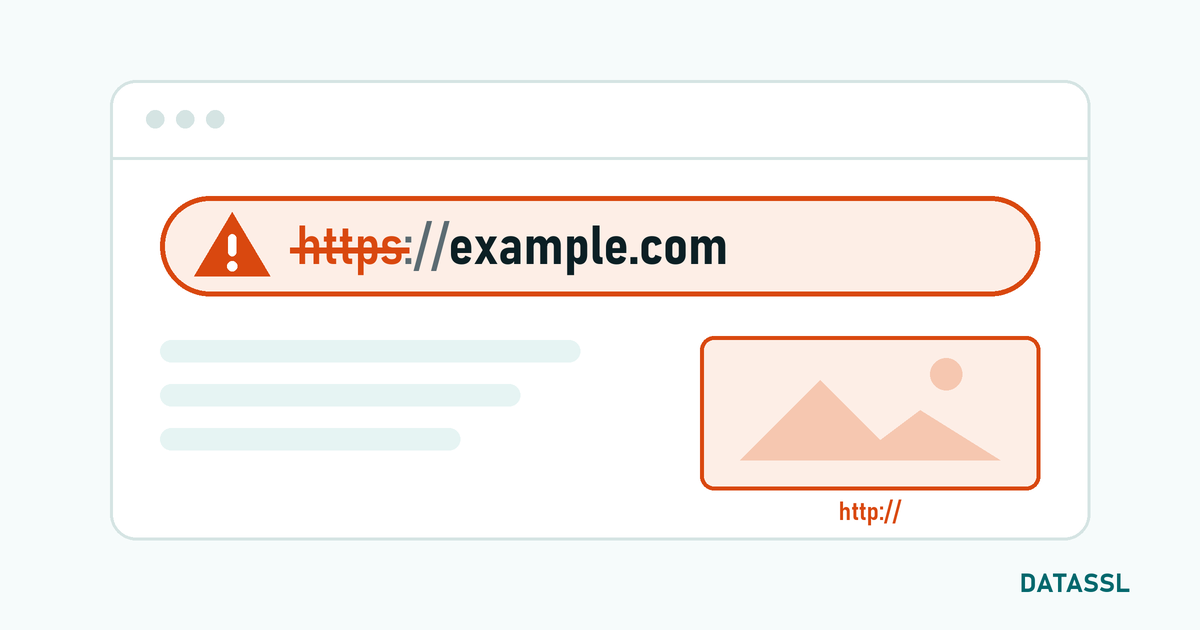
SSL/TLS certificate errors occur when the secure connection between the browser and the web server cannot be verified. These errors expose your visitors to scary warning pages, causing loss of trust and traffic decline. All major browsers show full-page warnings for SSL errors.
The good news is that the vast majority of SSL certificate errors are caused by simple configuration issues and can be resolved quickly. In this guide, we will discuss the most common errors and their solutions in detail.
1. NET::ERR_CERT_AUTHORITY_INVALID
What is it?
This error appears if the browser cannot recognize the certificate authority (CA) that issued the SSL certificate. Chrome, Firefox and Edge show this error with different messages, but the root cause is the same.
Causes
- Intermediate certificate is missing: The most common reason. Only the final certificate is installed on the server, the intermediate certificate chain is missing.
- Self-signed certificate: Self-signed certificates are not considered trustworthy by common browsers.
- Old root certificate: If the operating system or browser is out of date, new CA root certificates may not be recognized.
Solution
- Download the CA Bundle (intermediate certificate chain) file from your certificate provider
- On your server, install the certificate chain in the correct order: Site certificate → Intermediate certificate(s) → Root
- Verify chain with SSL Checker
- Recommend browser and operating system updates to visitors
2. NET::ERR_CERT_DATE_INVALID (Expired Certificate)
What is it?
This error indicates that the SSL certificate is Expired or has not started yet. A mismatch between the "Not Before" and "Not After" dates of the certificate and the server time causes this error.
Causes
- Certificate not renewed: The maximum validity of SSL certificates has been 200 days since 15 March 2026 (falling to 100 days from 15 March 2027 and to 47 days from 15 March 2029). If automatic renewal is not made, it may have expired.
- The server time is incorrect: If the server time is forward or backward, the certificate may appear invalid.
- Client time is incorrect: The user's computer time may be set incorrectly.
Solution
- Check certificate expiration date:
openssl s_client -connect domain.com:443 | openssl x509 -noout -dates - If expired, renew immediately — in case of emergency, DV certificates are usually issued within minutes
- Synchronize server time with NTP:
timedatectl set-ntp true(Linux) - Set up auto-renewal for the future (Certbot or your certificate provider's auto-renewal feature)
3. ERR_SSL_VERSION_OR_CIPHER_MISMATCH
What is it?
This error occurs when a common TLS version or encryption algorithm cannot be found between the browser and the server
Causes
- Older TLS version: TLS 1.0 and 1.1 are disabled by all modern browsers. If the server only supports older versions, the connection cannot be established.
- Weak cipher suites: Insecure algorithms such as RC4, 3DES are blocked in modern browsers.
- SNI support is missing: Older servers may not support Server Name Indication
Solution
- Enable TLS 1.2 and TLS 1.3 on the server, disable older versions
- Configure powerful cipher suites (ECDHE + AES-GCM recommended)
- Create optimal configuration using Mozilla SSL Configuration Generator
- Aim for A+ grade with SSL Labs after configuration
4. Mixed Content Error
What is it?
Resources loaded via HTTP (images, scripts, CSS files) inside the HTTPS page cause this error. Browsers block or warn HTTP resources even if the page is HTTPS.
Solution
- Update all resource URLs to HTTPS
- Use protocol-free URL:
//cdn.example.com/style.css
Add - Content-Security-Policy header:
upgrade-insecure-requests - Batch convert HTTP references to HTTPS in database
- Check mixed content warnings in Browser DevTools Console
5. NET::ERR_CERT_COMMON_NAME_INVALID
What is it?
This error appears when the domain name in the certificate and the accessed domain name do not match.
Common Scenarios
- Certificate for
www.example.comdoes not coverexample.com(or vice versa) - The subdomain is not covered by the certificate
- Incorrect certificate installed (certificate for a different domain)
Solution
- Check the SAN (Subject Alternative Name) field of the certificate
- Make sure the certificate covers both
wwwand the bare domain; if it does not, have it reissued with the correct names or use a Multi-Domain SAN certificate - Use Wildcard SSL certificate to cover all subdomains
- Make sure your redirect rules point to the domain covered by the certificate
6. ERR_SSL_PROTOCOL_ERROR
What is it?
This is a general SSL protocol error and indicates that the connection failed during the SSL/TLS handshake phase.
Quick Solution Steps
- Check server configuration (certificate file paths correct?)
- Do the certificate and private key match? Compare
openssl x509andopenssl rsamodulus - Make sure the firewall or CDN is not blocking SSL traffic
- Examine the server logs:
tail -f /var/log/nginx/error.log
SSL Error Diagnostic Tools
| Vehicle | Area of Use | Free |
|---|---|---|
| SSL Labs (ssllabs.com) | Comprehensive SSL testing and scoring | ✅ |
| DATASSL SSL Checker | Fast certificate chain check | ✅ |
| OpenSSL CLI | Server side detailed diagnostics | ✅ |
| Chrome DevTools (Security tab) | Analysis from browser perspective | ✅ |
| Why No Padlock | Mixed content detection | ✅ |
Conclusion
While SSL certificate errors may seem scary, the majority are resolved with simple configuration fixes. Checking the intermediate certificate chain, tracking the certificate expiration, and keeping the TLS configuration up to date — these three steps prevent most errors. By setting up proactive monitoring and automatic renewal, you can solve SSL problems without your visitors noticing.